Need more help?
Use the Help chat below on this page, or click here to submit a case to our Support Team.
Troubleshooting submission errors
Why can’t the system find information in my manuscript?
The submission system automatically scans your manuscript for details like title, abstract, author names, and affiliations. If a required element is not listed or is incorrect in your main document, follow this process:
- Edit the file and replace the previous version on the Upload Manuscript submission step.
- The system will reprocess your main document and automatically extract the updated information.
- You may be asked to return to an earlier step to confirm any changed information.
- If the system still can’t find the information it needs, you can enter it manually.
On rare occasions, the system is unable to correctly process main manuscript documents. WordArt or other unusual formatting in the main document may cause errors with the document import. In this case, you should:
- Try converting WordArt to plain text or an image.
- Remove any other unusual formatting.
- Save your document and try uploading again.
Why can't I select the same article type at revision as my initial submission?
The journal no longer supports that article type. Follow these steps:
- Check with the journal’s editorial office about whether to choose another article type that fits your manuscript or keep the original article type.
- To keep the original article type, simply do not select another, and we will retain the article type from the initial submission.
- Important: If you select a different article type from the dropdown, you will not be able to later select the original article type.
Why can't I proceed past the article type step?
You cannot proceed if you have not selected an article type or have not answered all required submission requirements questions.
To resolve this issue, follow these steps:
- Select an article type from the dropdown menu.
- Check all boxes for the submission requirements questions.
- Click Confirm to continue the submission.
Alternatively, click on a different journal to view other journals by Wiley.
What should I do if a virus has been found in my file?
- Delete all infected files.
- Scan and upload virus-free versions (ensure files are smaller than 25 MB).
- If .docx files still show as infected, try uploading in .doc format.
- If the issue is not resolved, contact Customer Support.
What does "No .tex files found" mean when I upload a LaTeX file?
Wiley Authors is unable to locate .tex files in your uploaded archive. This error typically occurs for one of the following reasons:
- The archive does not contain any .tex files.
- The archive is password-protected.
- The main .tex file is not at the root level of the archive (for example, it is nested inside another archive within the .zip or .tar.gz file).
To resolve this issue, follow these steps:
- Click Back to return to the Add Files step.
- Delete the .zip or .tar.gz archive.
- Ensure the archive structure meets requirements, with the main .tex file at the top level.
- Upload the corrected version of the archive.
How do I fix a "Something went wrong" error?
Wiley Authors may display the "Something went wrong" error for several reasons.
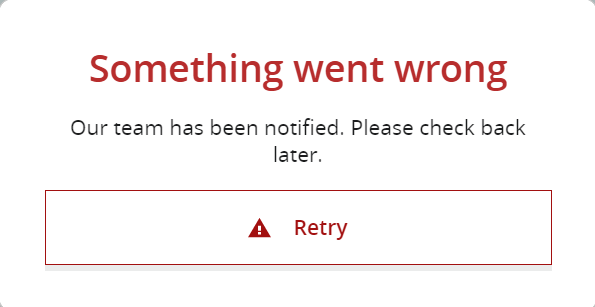
Cause 1: The same file has been used as the main document and title page for a journal that uses double- or triple-anonymous peer review
- Return to the "Upload Manuscript" step.
- Delete the main document and title page files.
- Check your files - ensure that author-identifying information is included only in the title page and not the main document.
- Upload a new version of each file.
Cause 2: Selected keywords or research topics are too long
When answering the Keywords or Research Topics question during the Additional Information step, one or more of the keywords or research topics you entered or selected from a dropdown may be too long.
- Select keywords or categories that are shorter in length.
- Alternatively, if the question is not required to proceed with the submission and you are comfortable not providing keywords for the manuscript, you can choose to not answer this question.
Other causes
If it's unclear why Wiley Authors displays the "Something went wrong" error, the root cause may be unrelated to your submission (such as a temporary connection disruption).
To resolve:
- Reload the page.
- If issues persist, contact Customer Support.
How do I fix an "unexpected error when authenticating with identity provider" ?
You may see this error if you log in with an expired link or bookmark. To get back to your dashboard, go to https://authors.wiley.com/dashboard.
How do I fix a reviewer PDF generation error?
A reviewer PDF is a compiled version of all the files of your manuscript that are required for peer review. Errors generating the reviewer PDF can occur when:
- Image files exceed 10 MB.
- PDF generation time exceeds 10 minutes, in which case the system times out.
- Manuscript file types are not supported or cannot compile successfully.
If this happens, you should:
- Check your manuscript file types.
- Check your image file sizes.
- If issues persist, contact Customer Support.
Note: While you have the option to submit your manuscript without creating a reviewer PDF, it is not recommended as the editorial office may send the submission back to you.
What should I do if my title isn't displaying correctly?
Wiley Authors is unable to correctly parse your main manuscript document, either due to special formatting in the document such as word art, or for some other reason.
You have three options to resolve this issue:
Option 1: Edit and re-upload your main document
- Click Edit and re-upload Main Document > Back to Upload Manuscript.
- Delete your main manuscript document and upload a new one.
Option 2: Enter your title manually
- In the Provide Title manually > Title field, enter the correct title.
- Click Confirm Title.
- You will be redirected to the Abstract submission step, from where you can continue your submission.
Option 3: Select your title from the manuscript again
- Click Nevermind, I'll select the Title from my Manuscript.
- You will be redirected to the Title submission step.
What should I do if my abstract isn't displaying correctly?
Wiley Authors is unable to correctly parse your main manuscript document, either due to special formatting in the document such as word art, or for some other reason.
You have three options to resolve this issue:
Option 1: Edit and re-upload your main document
- Click Edit and re-upload Main Document > Back to Upload Manuscript.
- Delete your main manuscript document and upload a new one.
Option 2: Enter your abstract manually
- In the Provide Abstract manually > Abstract field, enter the correct abstract.
- Click Confirm Abstract.
You will be redirected to the Authors submission step, from where you can continue your submission.
Option 3: Select your abstract from the manuscript again
- Click Nevermind, I'll select the Abstract from my Manuscript.
You will be redirected to the Abstract submission step.
What should I do if my author information isn't displaying correctly?
Wiley Authors is unable to correctly parse your main manuscript document, either due to special formatting in the document such as word art, or for some other reason.
You have three options to resolve this issue:
Option 1: Edit and re-upload your main document
- Click Edit and re-upload Main Document > Back to Upload Manuscript.
- Delete your main manuscript document and upload a new one.
Option 2: Provide author information manually later
- Click Provide Authors manually in a later step > Provide Authors later.
You will be redirected to the next submission step, Affiliations. You can enter the author names in a later step, Author Details.
Option 3: Select your authors from the manuscript again
- Click Nevermind, I'll select the Authors from my Manuscript.
You will be redirected to the Authors submission step.
What should I do if my affiliations aren't displaying correctly?
Wiley Authors is unable to correctly parse your main manuscript document, either due to special formatting in the document such as word art, or for some other reason.
You have three options to resolve this issue:
Option 1: Edit and re-upload your main document
- Click Edit and re-upload Main Document > Back to Upload Manuscript.
- Delete your main manuscript document and upload a new one.
Option 2: Provide affiliations manually later
- Click Provide Affiliations manually in a later step > Provide Affiliations later.
You will be redirected to the Progress Board page for your submission, where you can choose to continue with the next submission step, Author Details.
Option 3: Select your affiliations from the manuscript again
- Click Nevermind, I'll select Affiliations from my Manuscript.
You will be redirected to the Affiliations submission step.
What should I do if my manuscript was deleted in ScholarOne?
When you delete a manuscript in ScholarOne that you submitted through Wiley Authors, you will receive an email notification with a link to resend or resubmit the manuscript. If you deliberately deleted the manuscript, no additional action is needed.
To resolve this issue, follow these steps:
- Click the link in the email notification about the deleted manuscript or log in to Wiley Authors directly. The options to resend or resubmit will be displayed on your My Submissions page and on the Submission Overview page for the deleted manuscript.
- On the Submission Overview page for the manuscript, do one of the following:
- To resend the submission without making changes, click Resend to journal.
- To make changes before resubmitting, click Resume submission.
Note: The email notification is sent only to the person who submitted the manuscript through Wiley Authors, not to co-authors. However, co-authors will see a "Submission failed" warning on their My Submissions page and the Submission Overview page until the failure is resolved.
Don't see what you're looking for?
Use the Help chat on this page, or click here to contact Customer Support